Updating FF Kipas means replacing the installed build with a newer one while keeping the setup you have already tuned. Done in the right order, an update takes only a few minutes and your sensitivity values, layout choices, and section preferences stay exactly where you left them.
The problems users report after an update usually come from rushing: installing over a broken build, skipping a backup, or picking the wrong file for the device. If you want the full picture of the app before you start, review FF Kipas APK download first, then work through the steps below in order.
Check Your Current Build Before Anything Else
Start by opening the app and noting which build you are currently running. The build information tells you whether an update is actually needed and which file you should be looking for. Users who skip this check often install a build that is older than the one they already have, which creates confusion that looks like a bug but is really just a version mix-up.
It also helps to confirm how much free storage the phone has. An update needs room for the new file as well as space for the app to unpack and settle after installation. The same preparation logic applies to a first install, and the steps in how to install FF Kipas on Android explain the storage and permission checks in more detail if you want a refresher.
Back Up Your Settings First
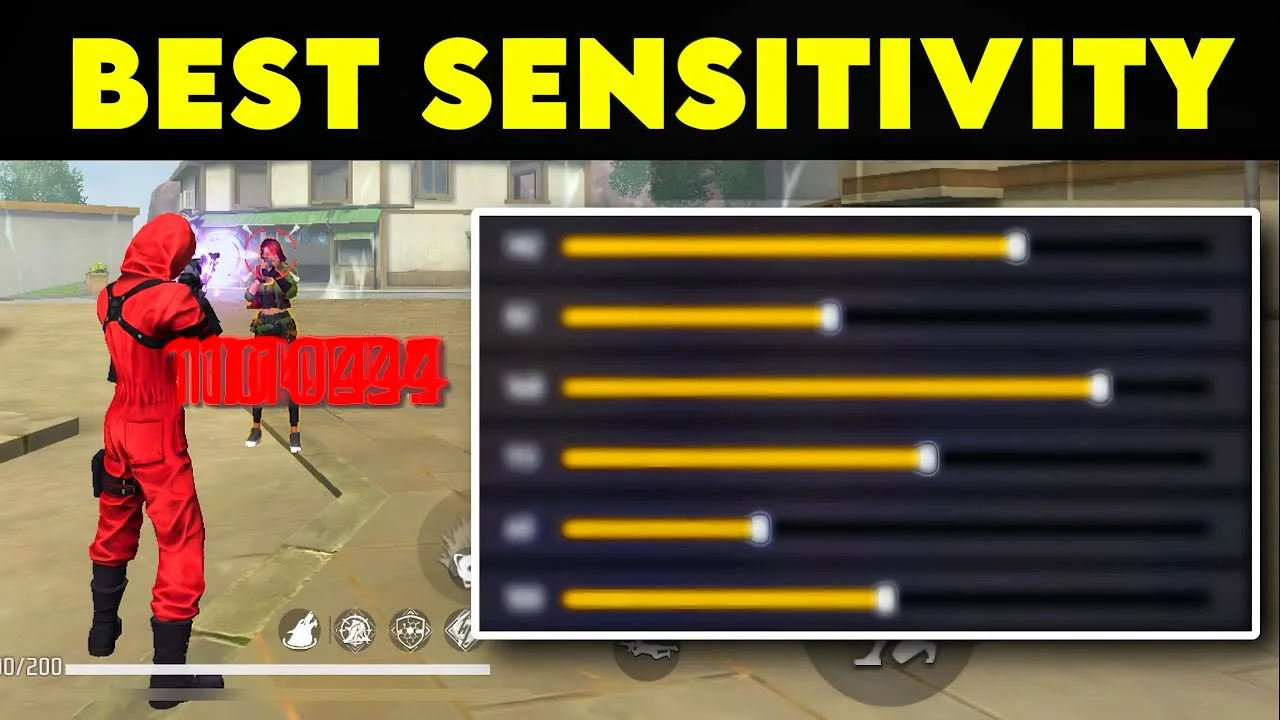
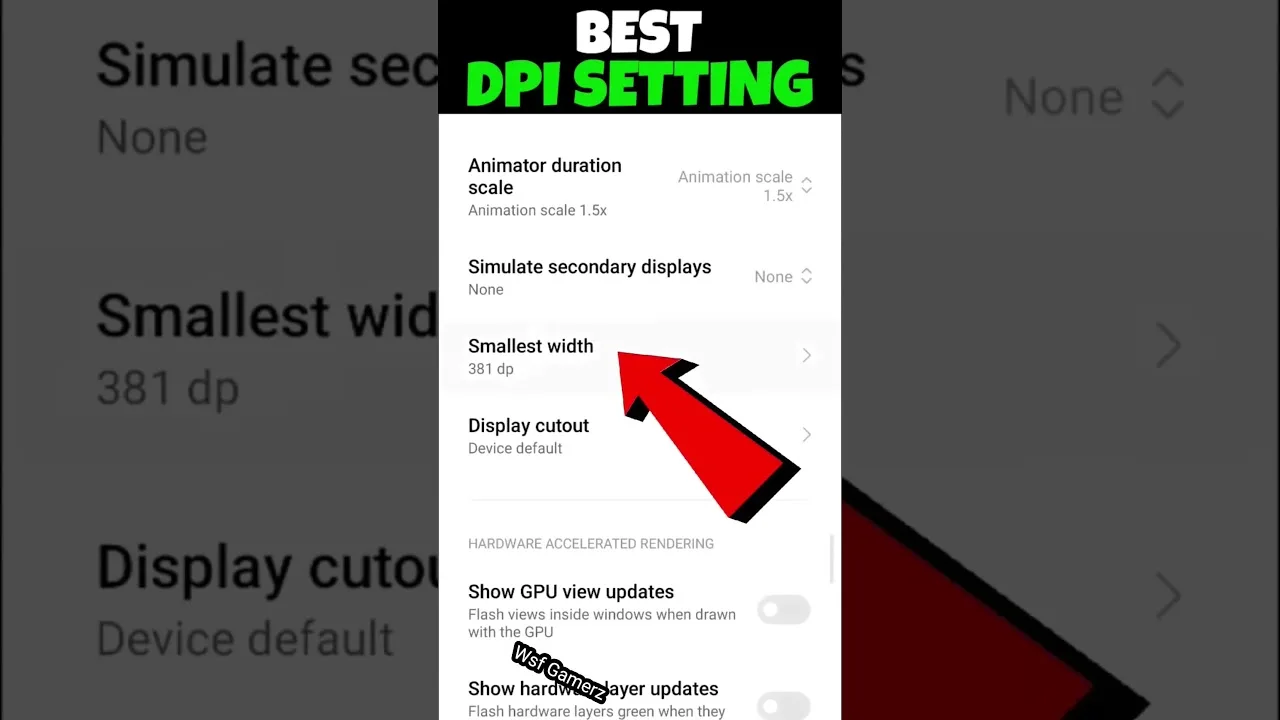
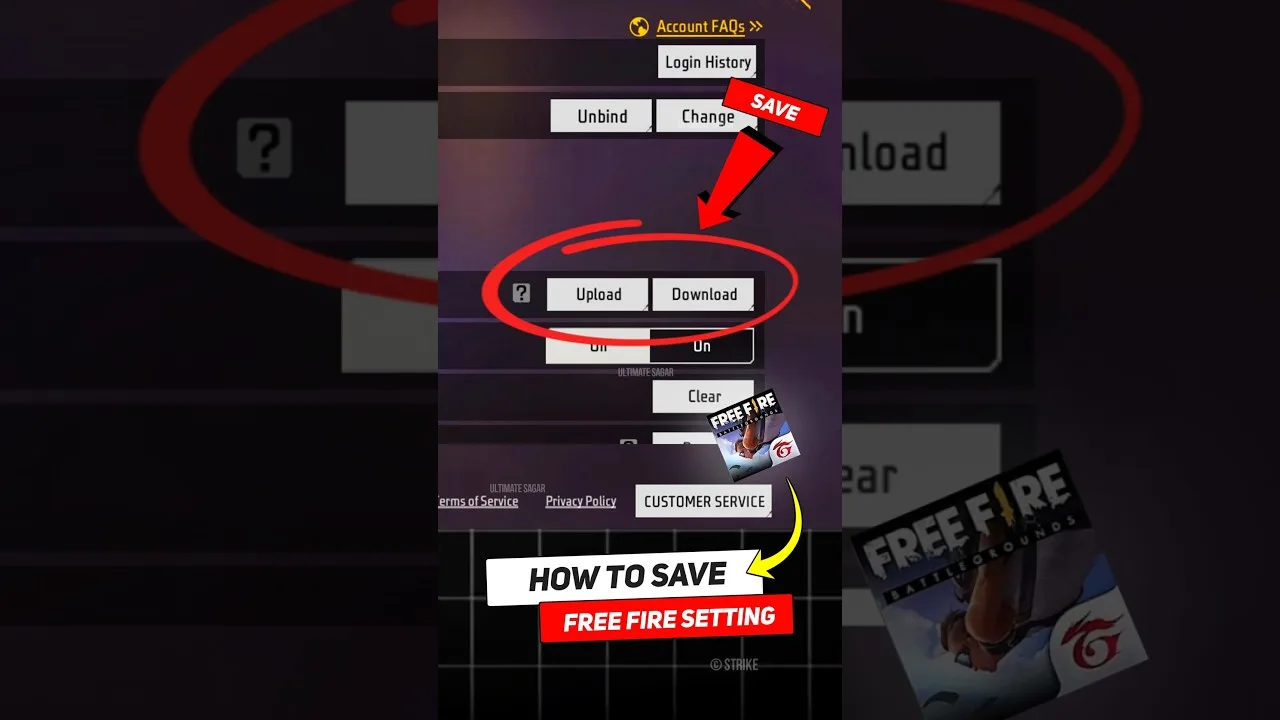
Your tuned values are the most valuable part of your setup, and they are also the easiest thing to lose during a careless update. Before replacing anything, write down your key sensitivity numbers, DPI value, and any custom layout choices, or use the backup approach covered later in this guide series so the values exist outside the app itself.
A written backup takes two minutes and removes almost all update risk. If the new build resets a section, you can re-enter the values by hand instead of trying to remember them under pressure. The dedicated guide to backup and restore FF Kipas settings walks through the full routine, including where to keep the backup so it survives a reinstall.
Install the Update the Clean Way
Once the backup exists, download the new file and install it over the current build rather than uninstalling first. Installing over the top is what preserves most in-app data on Android, while a full uninstall can wipe local preferences along with the app. You can get the current file from the download page when you are ready to replace the old build.
During installation, allow the permission prompts Android shows and wait until the process finishes completely before opening the app. Interrupting an install, or opening the app the second the icon appears, is a common cause of a first launch that hangs or closes. Give the new build a clean first start on a phone that is not busy with other heavy tasks.
One more habit separates smooth updates from messy ones: timing. Avoid updating in the middle of a gaming session or minutes before you plan to play with friends, because any small surprise then becomes urgent. Update when you have fifteen spare minutes and a charged phone, ideally on a stable connection so the download itself is not interrupted halfway. If the file download stops midway, delete the partial file and start again rather than trying to install an incomplete package, since incomplete files are a quiet cause of install errors that later get blamed on the app. Treating updates as calm, scheduled maintenance instead of an interruption keeps the whole process boring, and boring is exactly what you want from maintenance.
Verify Your Settings After the Update
Open the app and walk through your main sections one by one. Check that sensitivity values match your backup, that your DPI setting is unchanged, and that any overlay or display preferences still sit where you set them. Most updates preserve these values, but verifying takes only a minute and catches the rare reset before it affects a match.
Then run a short practice session instead of jumping straight into a ranked game. A few minutes of movement and aim checks will show whether the new build feels the same as the old one. If something feels different, compare it against your notes rather than changing several values at once, because single changes are far easier to judge.
What to Do If the Update Goes Wrong
If the updated app will not open, behaves strangely, or loses a section you rely on, do not keep reinstalling random files. Clear the app cache first, restart the phone, and open the app again on a clean system state. Many post-update problems are cache or leftover-data issues rather than a faulty new build.
If the problem continues, reinstall the build you know worked and restore your values from the backup. That fallback is exactly why the backup step matters: a failed update becomes a ten-minute inconvenience instead of a full setup rebuild. Once the older build runs cleanly, you can try the update again later with more storage free and fewer background apps running.
Final Thoughts
Updating FF Kipas is a simple routine when it follows a fixed order: check the current build, back up your settings, install over the top, and verify everything afterwards. Treat each update that way and new builds become a small maintenance task instead of a risk to the setup you have spent time tuning.